Weather guide
Apple Watch weather complications: choose a useful glance
Choose an Apple Watch weather complication around the decision you make most often, understand how updates work, and know when stale data needs attention.
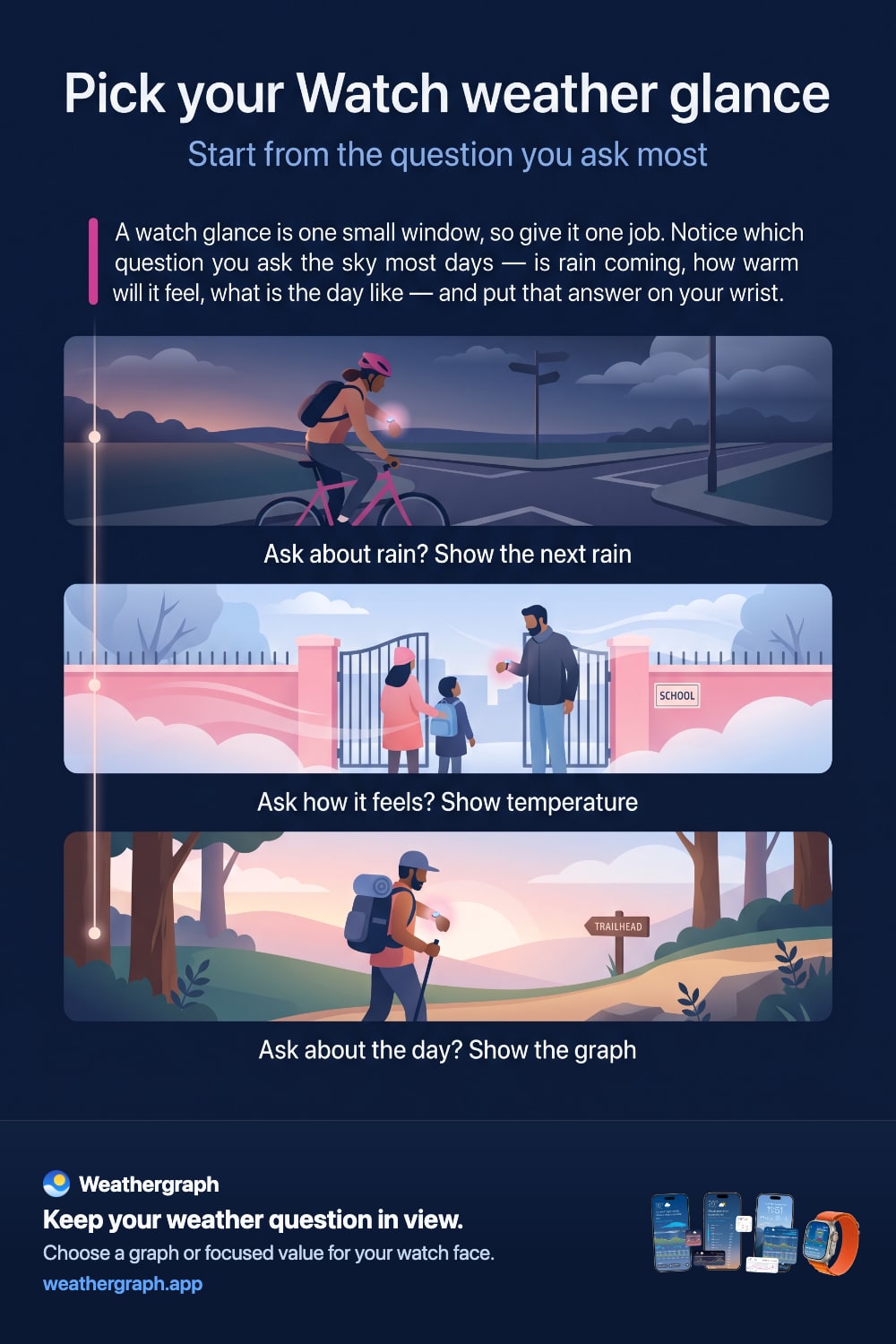
The best Apple Watch weather complication is not the one that shows the most data. It is the one that answers your most frequent question without making you open the app: Will conditions change before I am done? Do I need rain gear? Is the wind building? How warm will the next few hours feel?
Choose by the decision you make
| Your recurring question | A useful complication style | Why it helps |
|---|---|---|
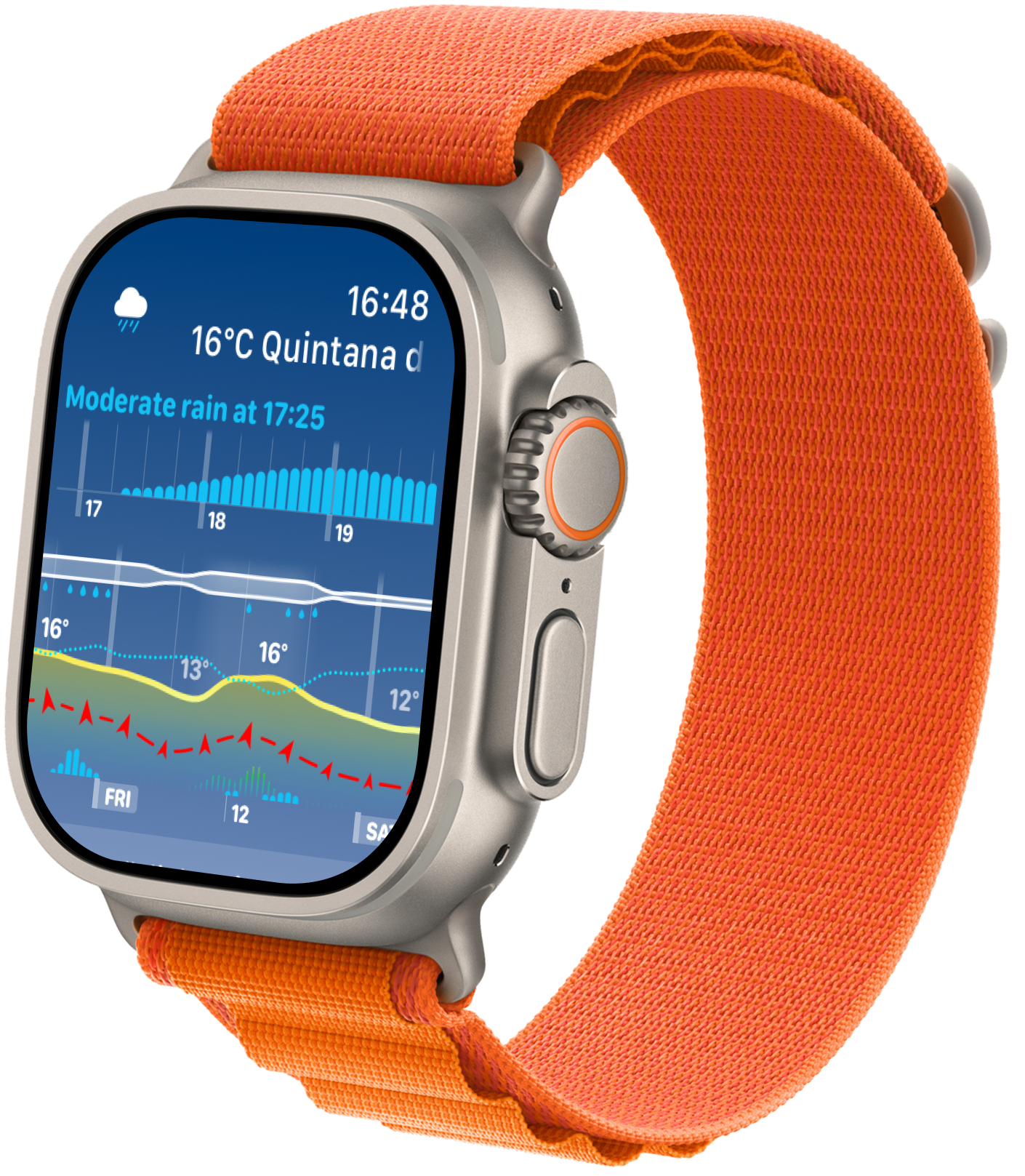
| “What changes over the next few hours?” | A compact weather graph | Trends and timing stay visible instead of collapsing into one current-condition icon. |
| “Is rain approaching?” | Precipitation or next-rain complication | It gives the next precipitation signal priority in a small space. |
| “How hot, cold, windy, or humid is it?” | A focused single-metric complication | One number and its near-term range are easier to read at a glance. |
| “What does the whole week look like?” | A Weathergraph Smart Stack widget with a wider chart zoom | A widget can devote more space to the timeline than many watch-face slots. |
Choose the question first, then the slot and style. A dense graph is valuable when change matters; a single metric is better when you already know exactly what you are checking.
Complication, widget, or app?
- A complication lives directly on a watch face. It is the fastest glance and has the tightest space constraint.
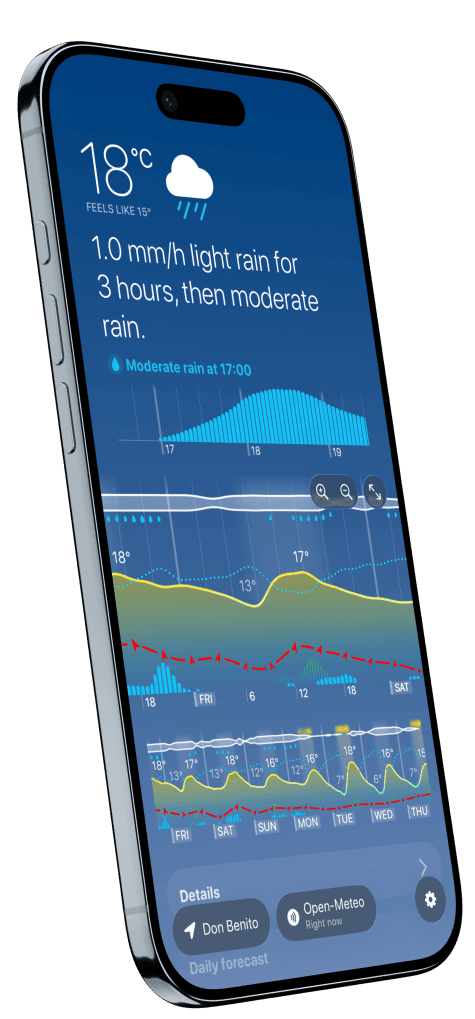
- A Smart Stack widget is available when you turn the Digital Crown or otherwise open the Smart Stack. It can show a broader chart, including a full-week zoom in Weathergraph.
- The Weathergraph watch app gives you the most context and configuration when the glance raises another question.
Apple describes complications and widgets as glanceable WidgetKit experiences driven by timelines rather than continuously running mini-apps. Read Apple's WidgetKit overview.
Make the glance readable at your wrist
Judge a layout on the actual Watch, at the distance you normally hold it. A screenshot enlarged on a phone can make tiny labels look far easier to read than they are during the day.
Start with one recurring question. If you need to know a value quickly, try a compatible focused complication. If you need to see a change over time, try a larger graph slot. Use the full app for details that do not fit comfortably into the glance.
Check the value, units and time context together. Removing useful context to enlarge a number can create a different kind of confusion. If text remains too small, try another supported slot or watch face; do not assume every layout responds to the same size setting.
A practical test is to lower your wrist, look away, then glance again. Can you answer your chosen question without leaning closer? Keep the layout that works for your own reading needs.
How to add a Weathergraph complication
- Touch and hold your current watch face, then choose Edit.
- Swipe to the complication section and tap the slot you want to change.
- Select a Weathergraph complication suited to that slot.
- Return to the face and check that the result answers your chosen question at a glance.
The exact controls vary with the watch face and watchOS version. Apple's current watch-face complication guide is the safest step-by-step reference. Weathergraph also offers ready-made watch faces that place its complications in compatible slots.
How fresh should a complication be?
An Apple Watch complication is not a live webpage. Weathergraph can prepare a timeline and request new weather data, but watchOS decides when third-party widgets and complications receive execution time. Apple says WidgetKit assigns a dynamic daily refresh budget and may vary refresh timing based on factors such as visibility, recent reloads, app activity, and system resources. See Apple's update documentation.
This means two honest things can be true:
- A complication can advance through already-downloaded forecast hours even while the app is not continuously running.
- A new network forecast is not guaranteed to arrive at an exact minute simply because an app asks for it.
That platform behavior explains normal variation; it should not be used to excuse a complication that remains blank, obviously stale, or inconsistent for a long time.
Location and power settings that matter
Weathergraph complications use your current GPS location, not whichever saved location happens to be open in the iPhone app. For background location updates, Weathergraph needs the appropriate location permission. Low Power Mode also disables background updates for third-party apps.
If the displayed place or forecast seems wrong, first check:
- The location permission for Weathergraph on both iPhone and Apple Watch.
- Whether Low Power Mode is enabled.
- Whether Weathergraph was force-quit on iPhone; a force-quit app cannot resume background work until reopened.
- The forecast source and timestamp in the app before comparing values.
When stale data is a support problem
If the complication shows dashes, stays blank, or remains outdated after permissions, power mode, and a normal device restart have been checked, use the Weathergraph troubleshooting steps. A screenshot, device/watchOS version, location, approximate time, and Weathergraph debug-log code make the report much easier to diagnose.
Do not plan a weather-sensitive activity from a complication that visibly says its forecast is old. Open the full app, refresh your information, and consult official local warnings when safety is involved.
Sources and limits
- Apple's WidgetKit overview explains that complications and widgets display timeline-based content.
- Apple's widget update guidance documents system-controlled refresh budgets and opportunistic timing.
- Apple's watch-face guide covers current setup controls.
- Weathergraph's FAQ contains current location, Low Power Mode, blank-widget, and debug-log troubleshooting details.
Weathergraph
Put the next few hours on your wrist
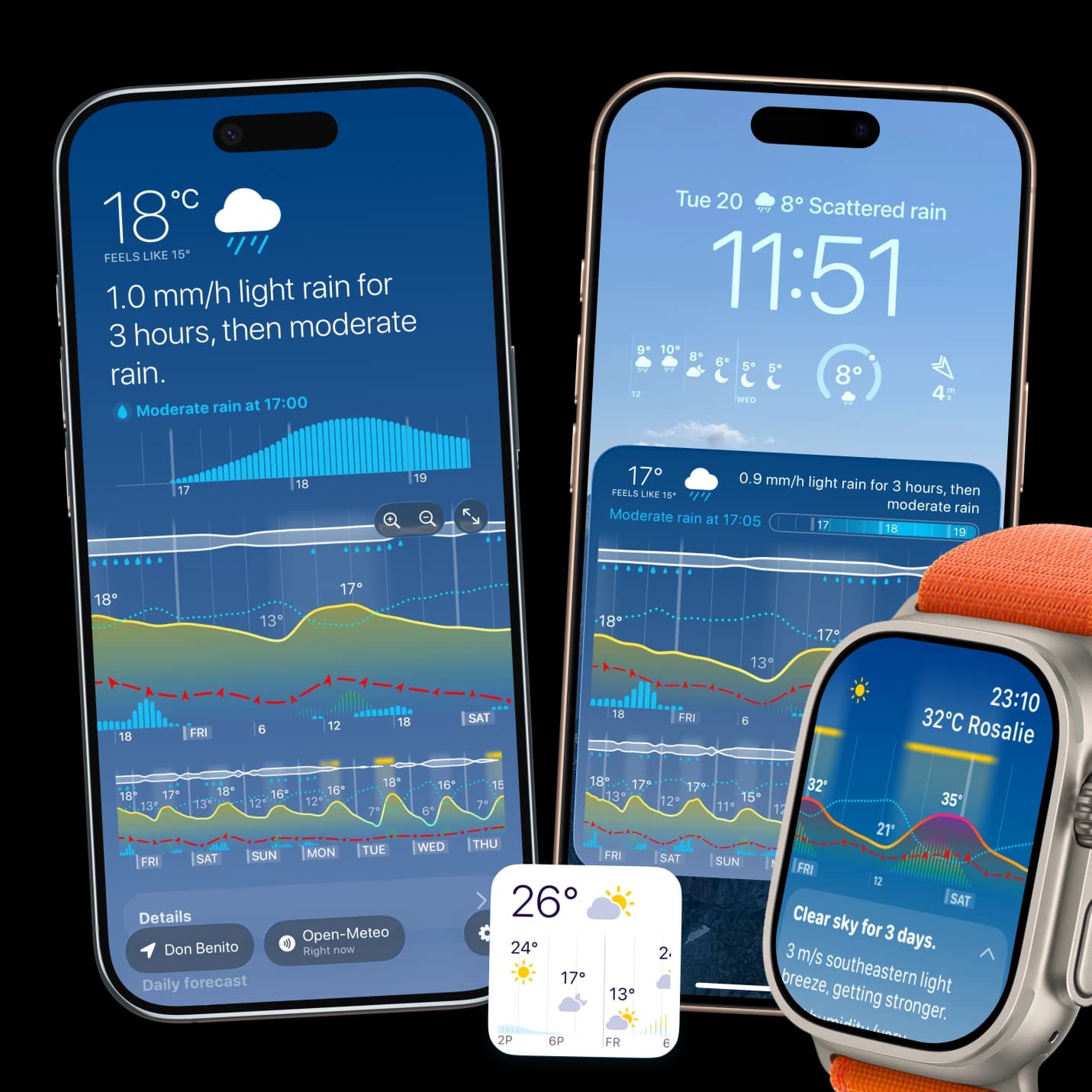
Weathergraph brings the same visual forecast language to Apple Watch: use a chart for changing conditions or a focused complication for the one metric you check most.
